Connect
Connect Microsoft 365
Relay connects to Microsoft 365 in one of two ways. Pick one in Settings > Email > How Relay connects.
| Sign in with Microsoft | Company-wide app | |
|---|---|---|
| Best for | One person's inbox, or a shared mailbox they can open | A team mailbox, with no one signed in |
| Who sets it up | Someone who can register apps in Microsoft Entra | A Microsoft 365 administrator |
| What Relay stores | A sign-in token, encrypted by Windows | An app ID and client secret |
Both ways start with an app registration in your Microsoft Entra admin center. Microsoft's own guide: Register an application.
Option 1: Sign in with Microsoft
- Open the Microsoft Entra admin center > App registrations > New registration. Name it
Relay, and choose accounts in this organisation only. - Under Authentication, add a platform: Mobile and desktop applications, with the redirect address
http://localhost. Turn on Allow public client flows. - Under API permissions, add Microsoft Graph delegated permissions:
User.Read,Mail.ReadWriteandMail.Send. For a shared mailbox, also addMail.ReadWrite.SharedandMail.Send.Shared. - Copy the Directory (tenant) ID and Application (client) ID from the Overview page into Relay's Settings > Email, then press Sign in with Microsoft and sign in.
Relay checks for new mail every minute and replies from the same mailbox once you approve.
Option 2: A company-wide app
An administrator registers Relay as an app in Microsoft Entra. Relay then works from a mailbox without anyone signing in.
Register the app
- Go to the Microsoft Entra admin center and open App registrations > New registration. (No redirect address is needed for this option.)
- Name it
Relay, leave Single tenant selected, and click Register. - On the app's Overview, copy the Application (client) ID and the Directory (tenant) ID.
Give it permission to the mailbox
- Open API permissions > Add a permission > Microsoft Graph > Application permissions.
- Add Mail.ReadWrite and Mail.Send.
- Click Grant admin consent for your organisation.
Important: These permissions cover every mailbox in your organisation unless you limit them. Microsoft lets you restrict an app to specific mailboxes with Exchange Online's role-based access control for applications. We strongly recommend limiting Relay to the mailbox it needs. See Microsoft's guides: Limit an app to specific mailboxes and Role Based Access Control for Applications in Exchange Online.
Create a client secret
- Open Certificates & secrets > New client secret, give it a description and an expiry, and click Add.
- Copy the secret's Value (not its Secret ID) straight away. It's shown only once.
- Put a reminder in your calendar a week before it expires.
Fill in Relay
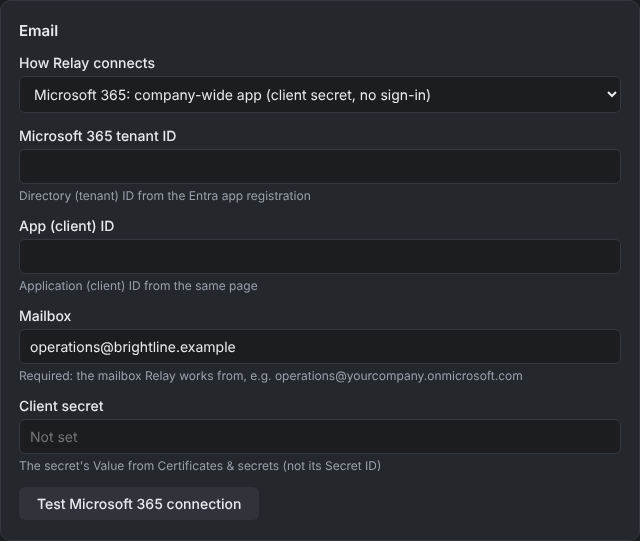
In Settings > Email, choose Microsoft 365: company-wide app, then enter the tenant ID, the app (client) ID, the mailbox address and the client secret. Click Test Microsoft 365 connection, then save.
Agent mailboxes
Each agent can have its own mailbox, for example finance@ for the Finance agent. Agent mailboxes currently need Microsoft 365.
Troubleshooting
- "Insufficient privileges" or 403 errors: admin consent wasn't granted, or an access policy excludes the mailbox.
- "Invalid client secret": you copied the Secret ID instead of the Value, or the secret expired.
- Microsoft's own guide: Register an application.